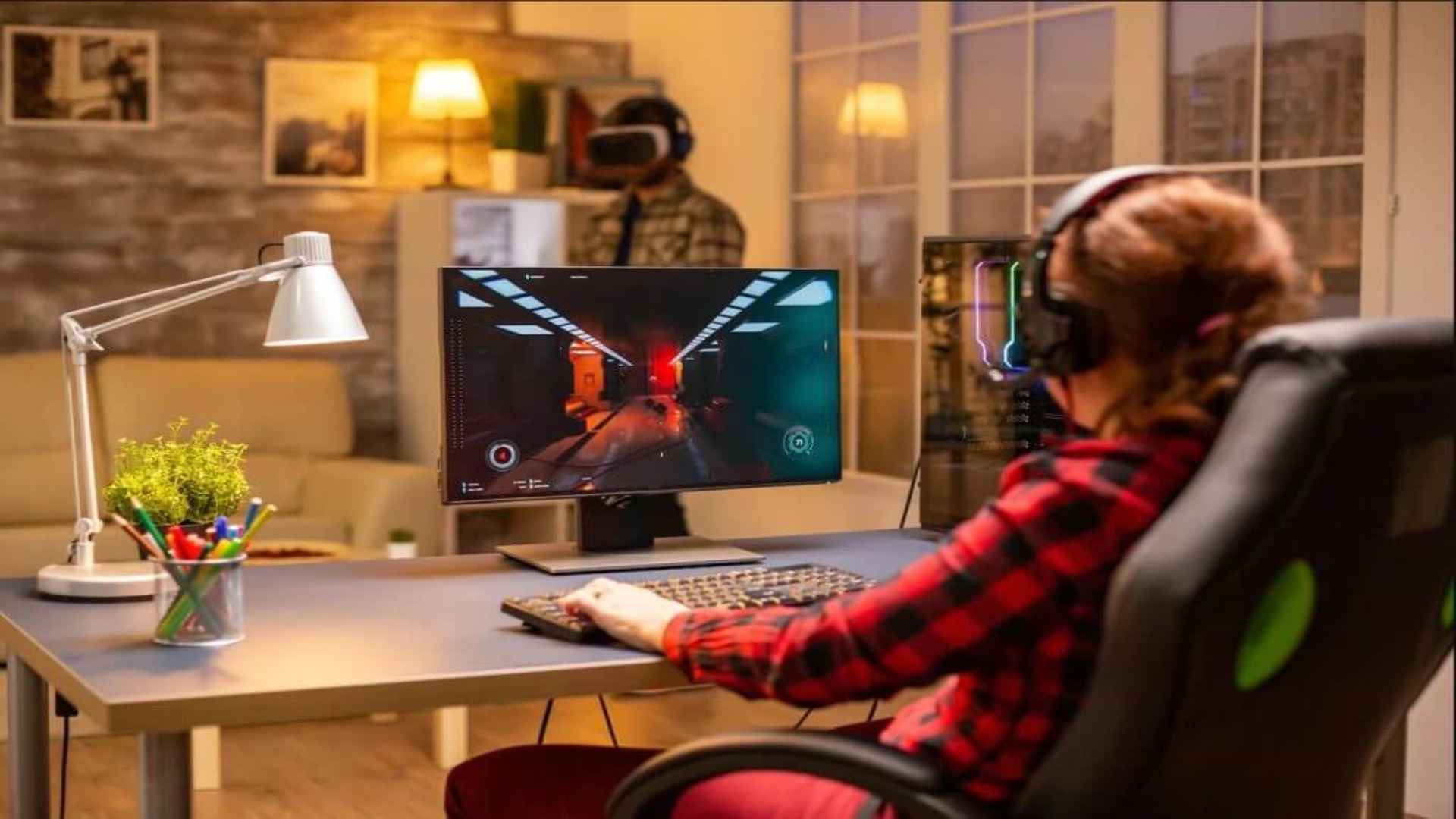
Connecting a mouse and keyboard to your PlayStation 5 can completely transform your gaming experience, especially for fast-paced shooters and complex strategy titles. While the DualSense controller remains the standard input method, native support for computer peripherals offers enhanced precision and familiar controls for PC gamers transitioning to console play. Understanding how to pair your hardware and which titles accept these peripherals ensures a smooth transition without technical hiccups.
Connecting Wired and Wireless Peripherals to PS5
Setting up a wired connection is as simple as plugging your devices directly into the available USB ports on the front or back of the console. The system automatically detects most standard USB mice and keyboards immediately, prompting a small icon on your screen to confirm recognition. If you run out of available ports, using a compatible USB hub allows you to connect multiple peripherals while leaving room for external storage.
For wireless setups, Bluetooth accessories require a brief pairing process through the system menu. Navigate to Settings, select Accessories, and enter the General tab to locate Bluetooth Accessories. Put your peripheral into pairing mode, select it from the listed devices, and complete the connection process.
Configuring System Settings for Optimal Precision
Once your hardware is linked, customizing system options improves responsiveness across menus and supported games. Accessing the Other Accessories menu under Settings lets you tailor specific parameters like key repeat rates and pointer speeds. Players can also adjust pointer orientation to accommodate left-handed or right-handed preferences.
Fine-tuning these preferences prevents frustrating lag or overly sensitive movements during intense gameplay sessions. Keeping your devices updated with the latest manufacturer firmware also helps maintain stability when navigating console interfaces.
Exploring Popular Supported Games on PS5
While system-level detection works for general typing and navigation, full in-game functionality depends entirely on developer implementation. Popular multiplayer shooters like Call of Duty, Fortnite, and Rainbow Six Siege offer native support with customizable keybindings. MMOs and sandbox titles such as Final Fantasy XIV and Minecraft also support mouse aiming and full keyboard controls.
You can check the full list of to see if your favorite title offers native control options. Checking patch notes regularly is recommended since developers often add or modify peripheral support in title updates.
Troubleshooting Common Connection Issues
If your connected keyboard works in console menus but fails to respond inside a game, verify the title's internal control settings. Many games require you to manually switch the active input device from Controller to Mouse and Keyboard before accepting inputs. Certain competitive game modes may also restrict input types to maintain fair matchmaking pools.
Restarting the console with peripherals already connected often resolves temporary recognition bugs. If specific keys remain unresponsive, testing the equipment on a PC or using direct wired connections can rule out hardware incompatibilities.